Your email template is the face of your brand. Onyx provides a professional-grade builder that allows you to create stunning, responsive templates that look great on any device.
1. Navigating to the Template Studio
Templates in Onyx are centralized in the Design section, allowing you to reuse your layouts across different campaigns without having to start from scratch every time.
- The Path: Log into your Onyx dashboard and click on Design in the main navigation menu.
- Selection: From the sub-menu or the main design page, select Email Template.
2. Creating a New Layout
Once you are in the Email Template management area, you can manage your existing designs or start a fresh project.
- Action: Click the Create button to start a new template.
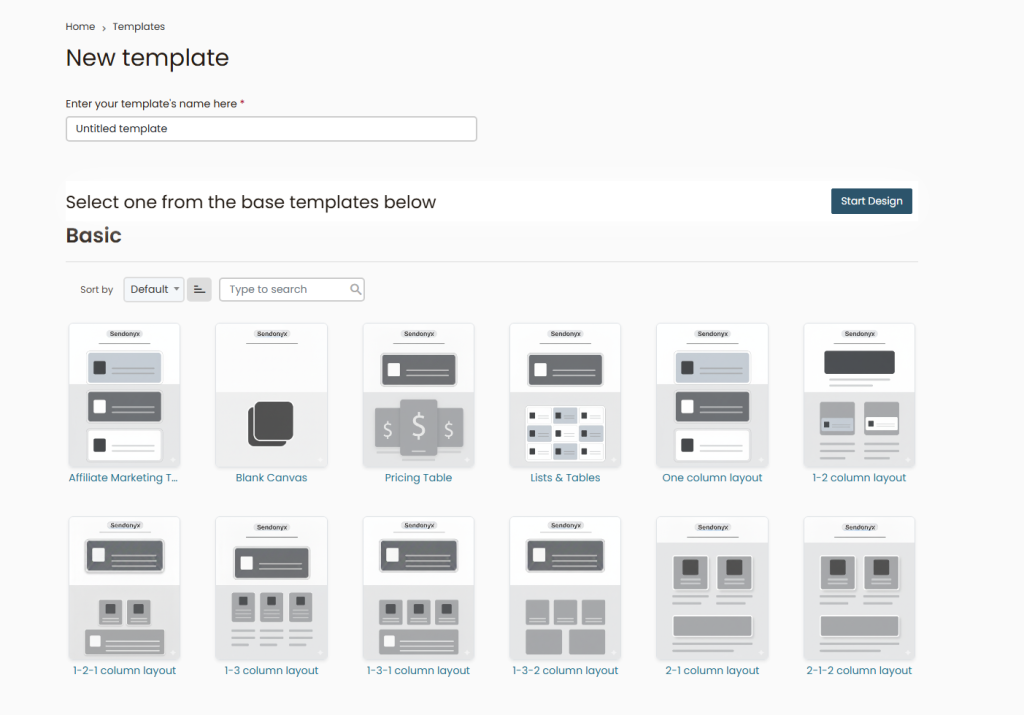
- Style Selection: You will be prompted to choose a starting point. You can choose from Pre-built Layouts, Basic Themes, or a Blank Canvas if you want to build everything from the ground up using the drag-and-drop editor.
3. Essential Legal & Functional Elements
While the visual design is important, every professional email template must contain specific elements to stay compliant with international email laws (like CAN-SPAM and GDPR).
- The Footer: Every template needs a clear footer section.
- Physical Address: You must include your company’s physical mailing address.
- Unsubscribe Link: This is non-negotiable. Onyx provides a “Tag” or a dedicated block for this. If it’s missing, your deliverability will suffer.
4. Finalizing and Previewing
Before you finish, make sure your template is actually functional. Use the builder’s built-in tools to check how the email renders.
- Responsive Check: Toggle between Desktop and Mobile views. Ensure your text isn’t too small and that images don’t stretch.
- Save: Once satisfied, click Save. This template will now be available for selection whenever you create a new Campaign or Automation.